BroodMinder-WiFi Hub (Legacy BRM-46)
The BroodMinder-WiFi BRM-46 is a legacy WiFi hub designed to collect data from nearby BroodMinder devices and automatically transmit it to MyBroodMinder through a WiFi connection.
This model was replaced in 2024 by the new generation BroodMinder-WiFi Hub.
Although no longer sold, BRM-46 hubs remain reliable, operational, and supported by BroodMinder.
This guide explains how to check the WiFi connection and troubleshoot a hub that has stopped uploading data.
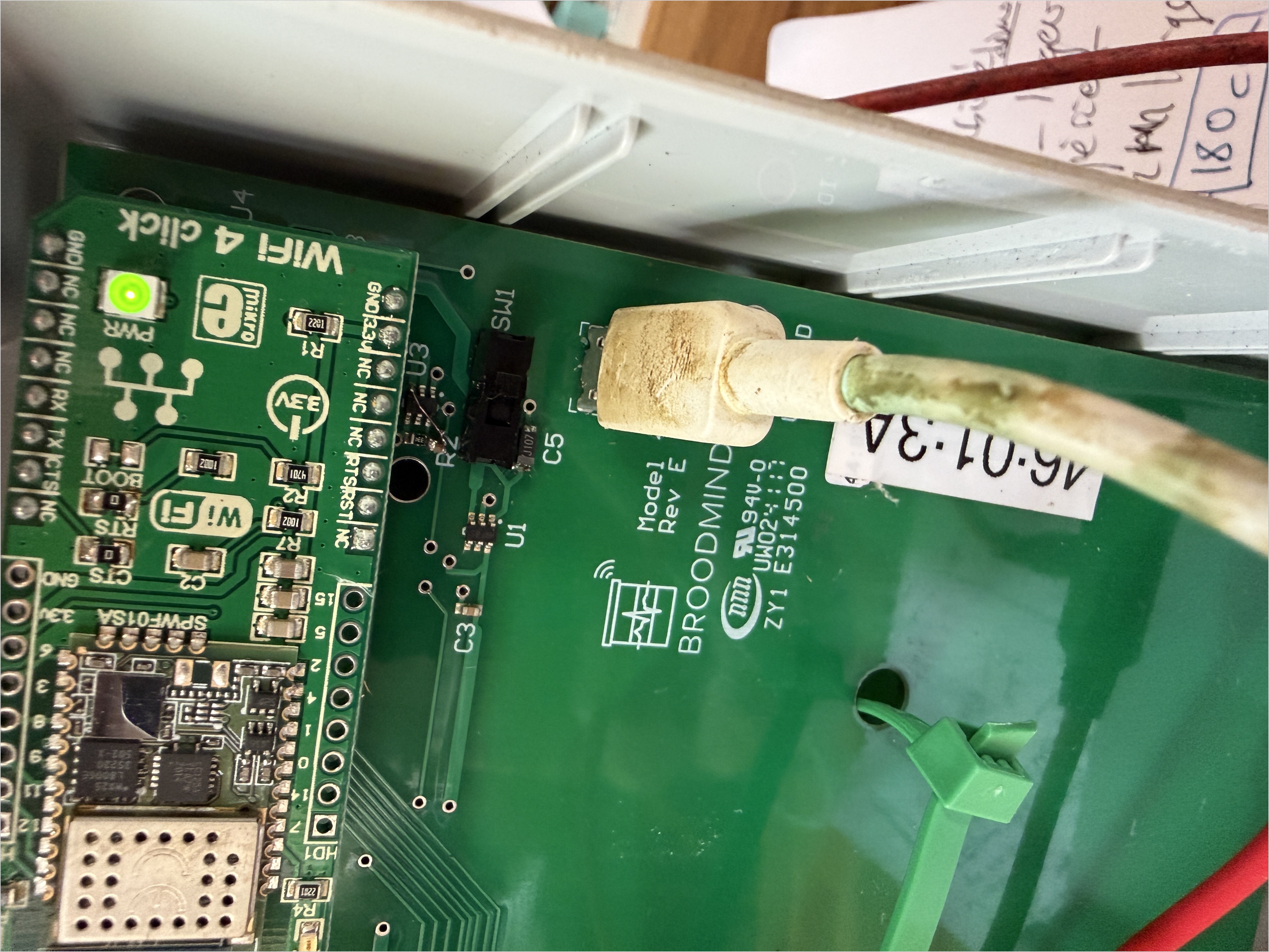
Legacy Model
This page applies specifically to BroodMinder-WiFi BRM-46 hubs.
These devices can be identified by their device ID, which starts with 46:, for example 46:01:3A.
For newer WiFi hubs, refer to the current BroodMinder-WiFi documentation.
1. Before You Start
If your hub has stopped sending data to MyBroodMinder, the first step is to verify that it can connect to your WiFi network.
For this procedure, you will need:
- Your BroodMinder-WiFi BRM-46 hub
- A USB power supply
- A smartphone with the BroodMinder-Cell App installed
- Your WiFi network name (SSID) and password
Use the BroodMinder-Cell App
Although this is a WiFi hub, configuration and diagnostics are performed using the legacy BroodMinder-Cell App.
Do not confuse it with the newer BroodMinder Bees App.
Power the Hub Directly
Before starting diagnostics, connect the hub directly to a USB charger.
This eliminates potential issues caused by an insufficiently charged solar battery during troubleshooting.
2. Connect to the Hub
Step 1 — Open the BroodMinder-Cell App
Install and open the BroodMinder-Cell App on your smartphone.
Step 2 — Select Your Hub
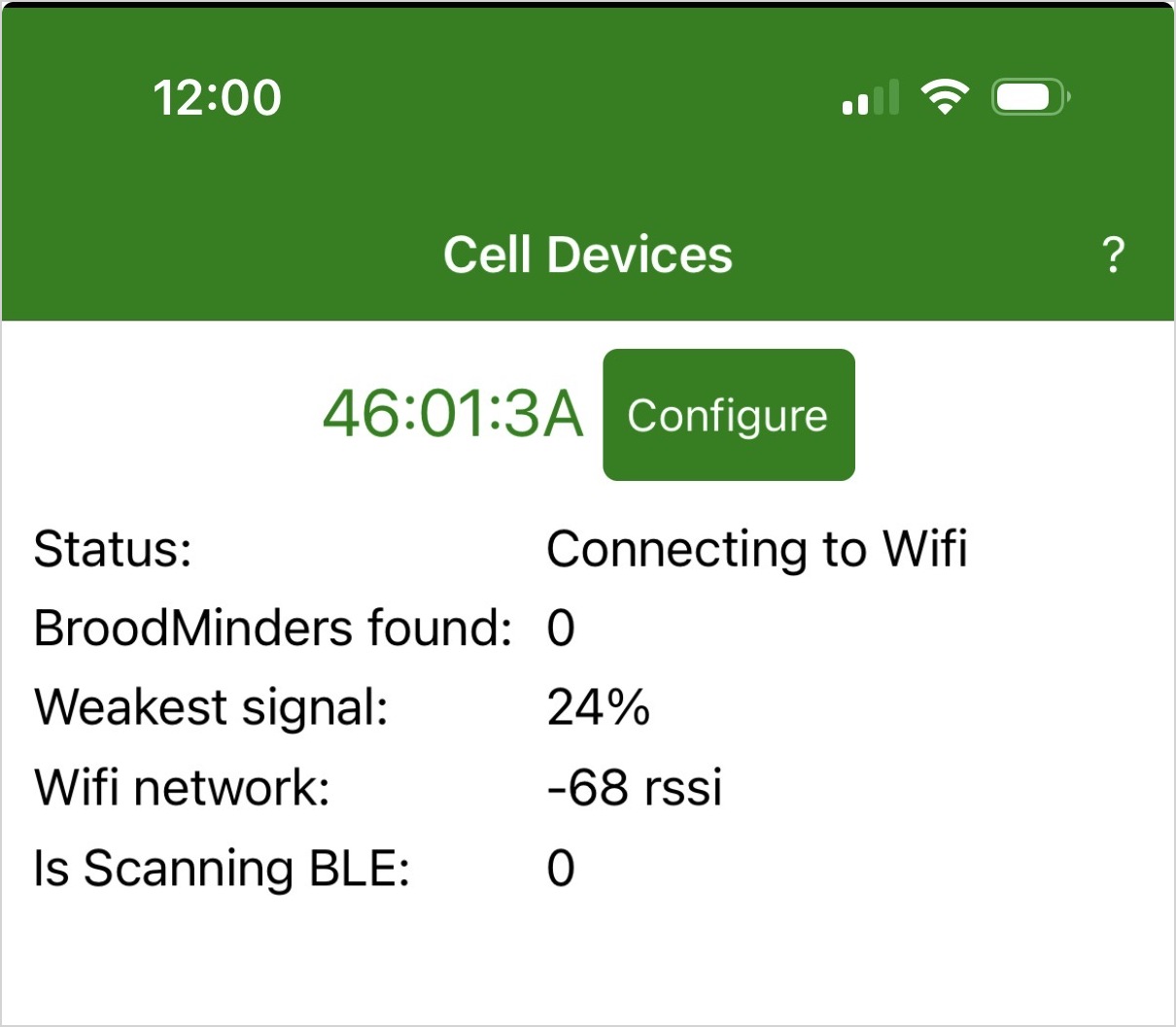
Your hub should appear in the list of nearby devices, highlighted in green.
Its identifier should begin with 46:.
For example:
46:01:3A
Tap Configure to access the hub settings.
Hub Not Found?
Make sure the hub is powered on and that Bluetooth is enabled on your smartphone.
Keep your phone close to the hub while performing diagnostics.
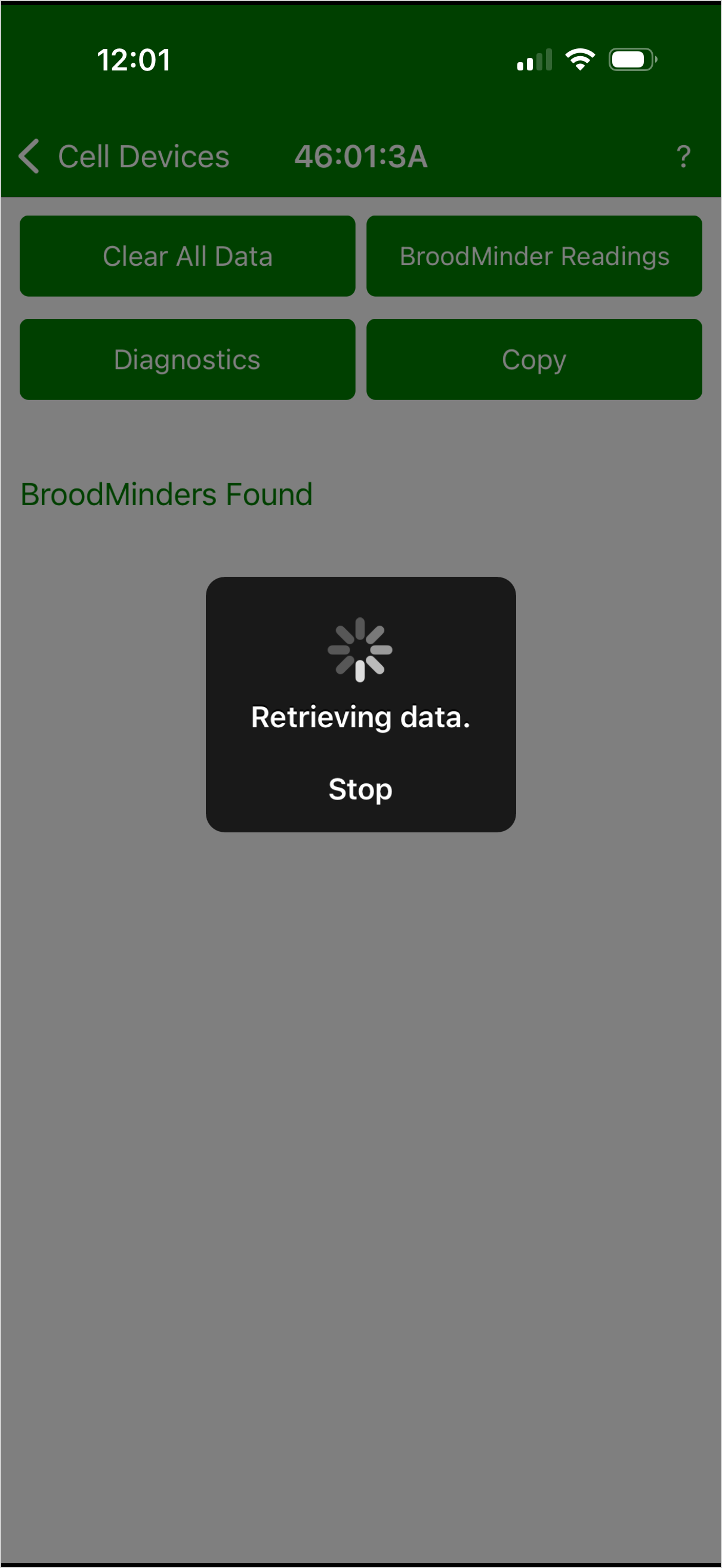
Step 3 — Open Diagnostics
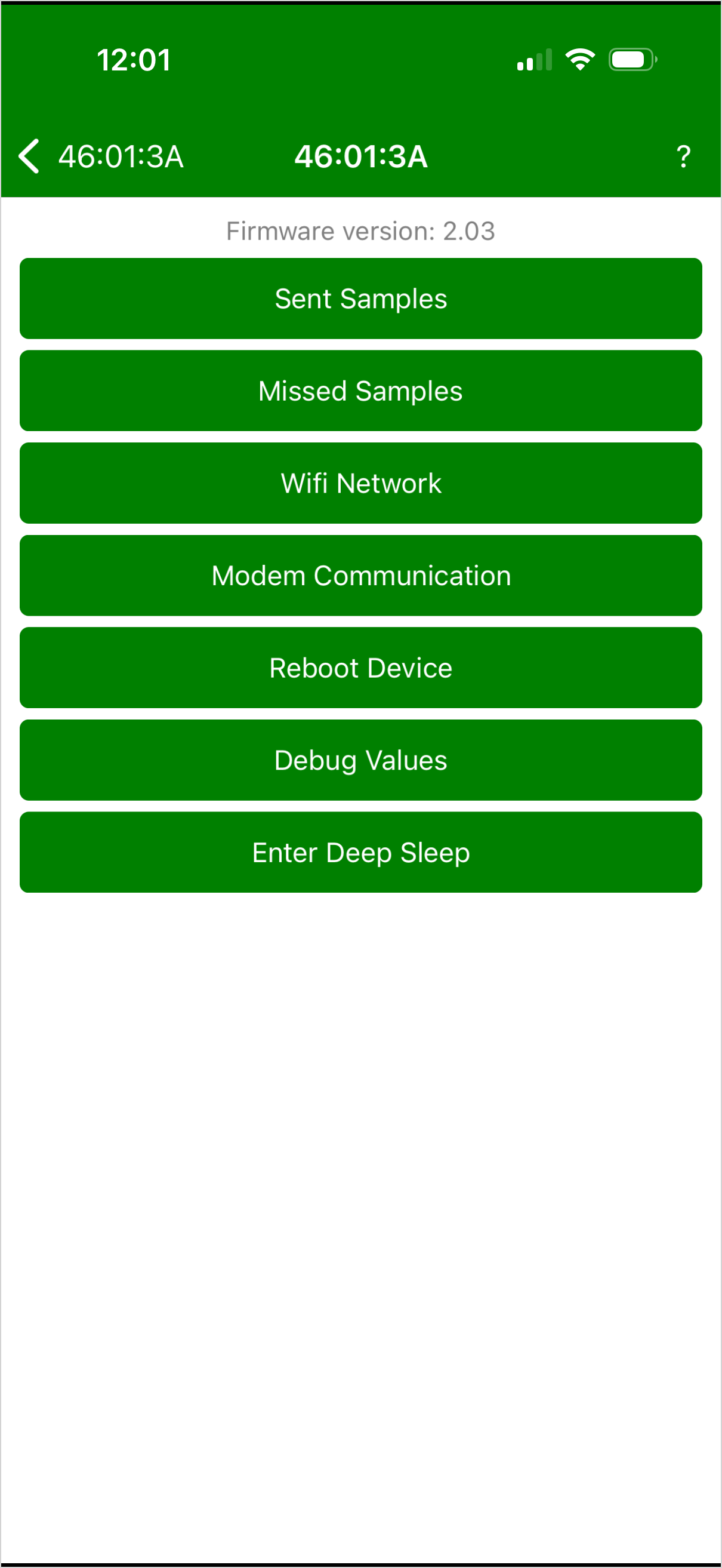
From the configuration screen, tap Diagnostics.
Then select WiFi Network.
3. Check the WiFi Network
Step 4 — Scan for Available Networks
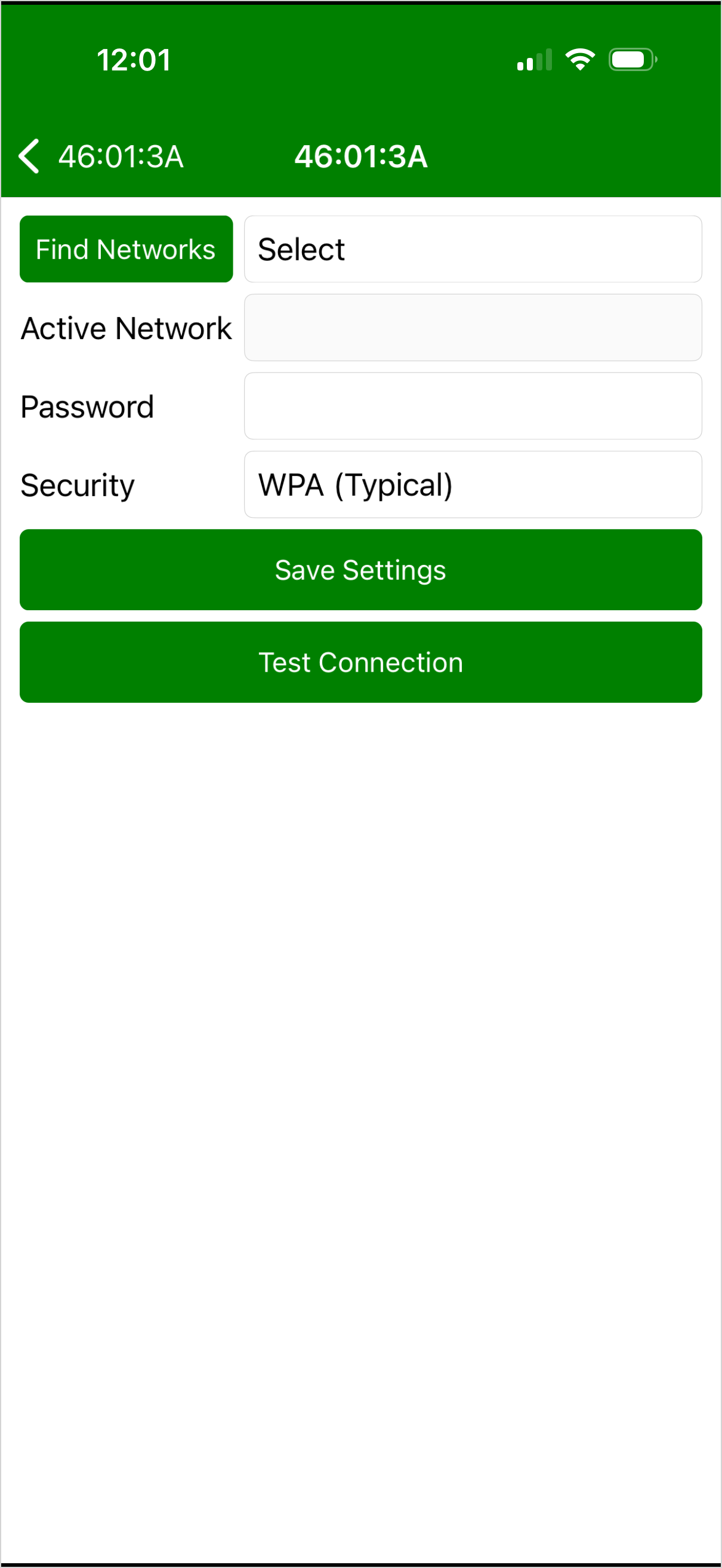
On the WiFi Network screen, tap Find Networks.
The hub will scan for nearby WiFi networks.
The available networks will appear with their signal strength (RSSI).
WiFi Frequency
The BRM-46 uses 2.4 GHz WiFi networks.
Make sure your router provides a 2.4 GHz network, as 5 GHz-only networks are not compatible.
Step 5 — Select Your Network
- Tap Select.
- Choose your WiFi network from the list.
- Check that the correct network appears in the Active Network field.
- Enter your WiFi password.
- Leave the security setting on WPA (Typical) if appropriate for your network.
- Tap Save Settings.
WiFi Password
WiFi network names and passwords are case-sensitive.
Make sure you enter the password exactly as configured on your router.
Understanding WiFi Signal Strength
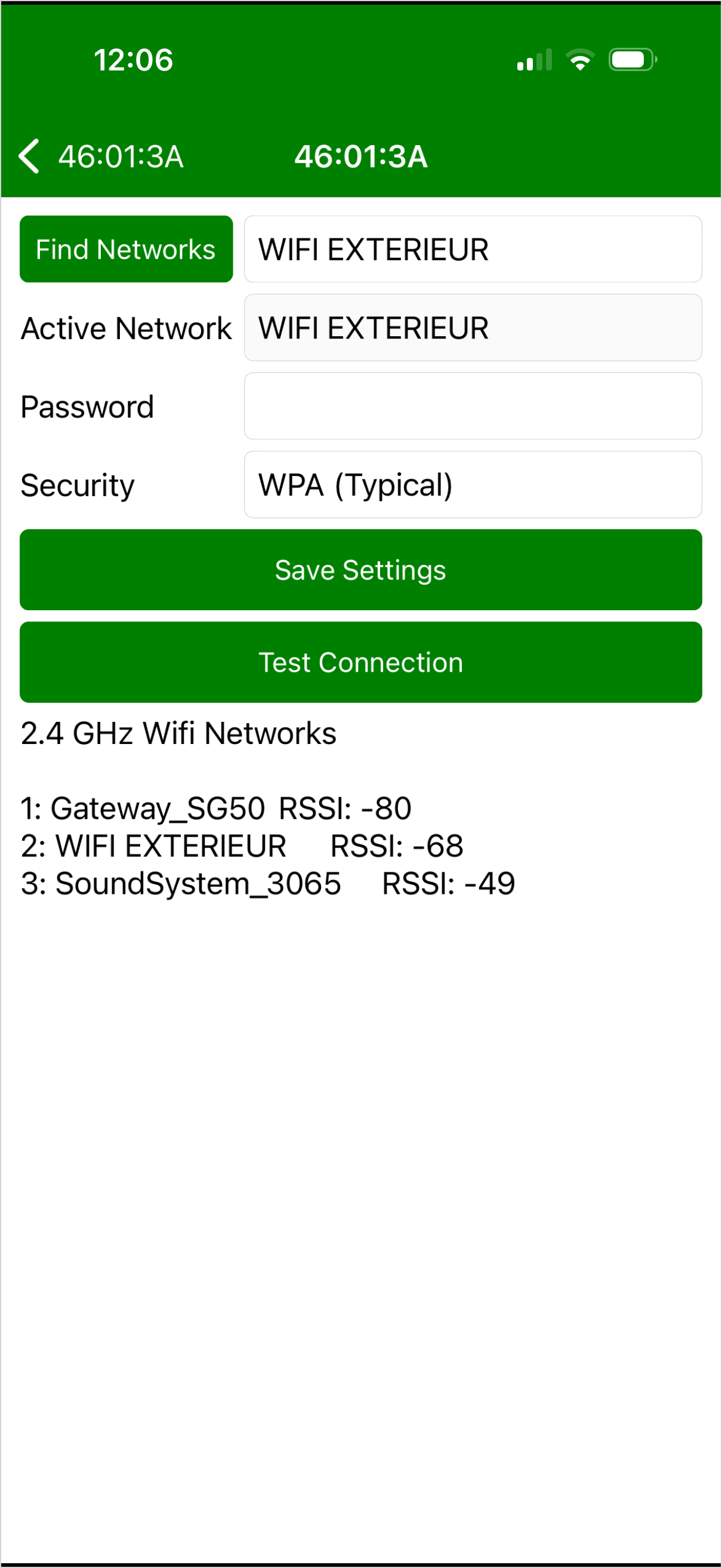
The network scan displays the signal strength as RSSI, expressed in dBm.
For example:
-50 dBm: Strong signal-65 dBm: Good signal-75 dBm: Weak signal-85 dBm: Very weak signal
Values closer to zero indicate a stronger signal.
If the signal is weak, try moving the hub closer to your WiFi router or access point.
4. Test the WiFi Connection
Step 6 — Run the Connection Test
After saving the WiFi settings, tap Test Connection.
The hub will attempt to connect to the selected WiFi network.
Step 7 — Check the Communication Trace
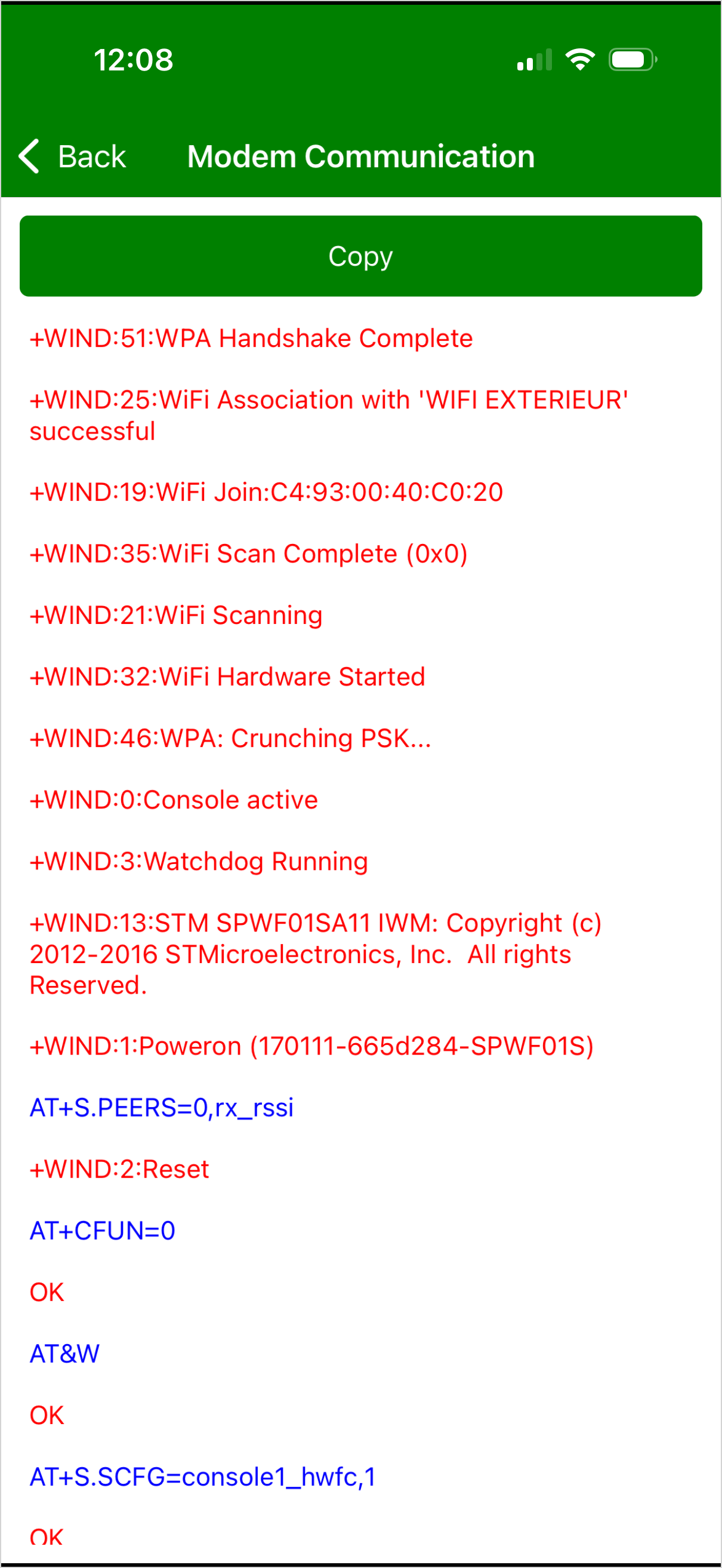
The application will display a series of technical messages describing the WiFi connection process.
Look for the following message:
You may also see:
WiFi Connection Successful
If you see WPA Handshake Complete, the hub has successfully completed the WiFi authentication process.
This confirms that the hub can authenticate with the selected WiFi network.
The next step is to verify that data is reaching MyBroodMinder.
No Handshake Complete Message?
If the connection test does not complete successfully:
1. Verify the WiFi password.
2. Make sure the selected network is a 2.4 GHz network.
3. Check the WiFi signal strength.
4. Move the hub closer to the router if necessary.
5. Save the settings and run **Test Connection** again.

If the problem persists, copy the communication trace and contact BroodMinder support.
5. Verify Data Transmission in MyBroodMinder
A successful WiFi handshake confirms that the hub has connected to the WiFi network, but you should also verify that data is reaching the BroodMinder servers.
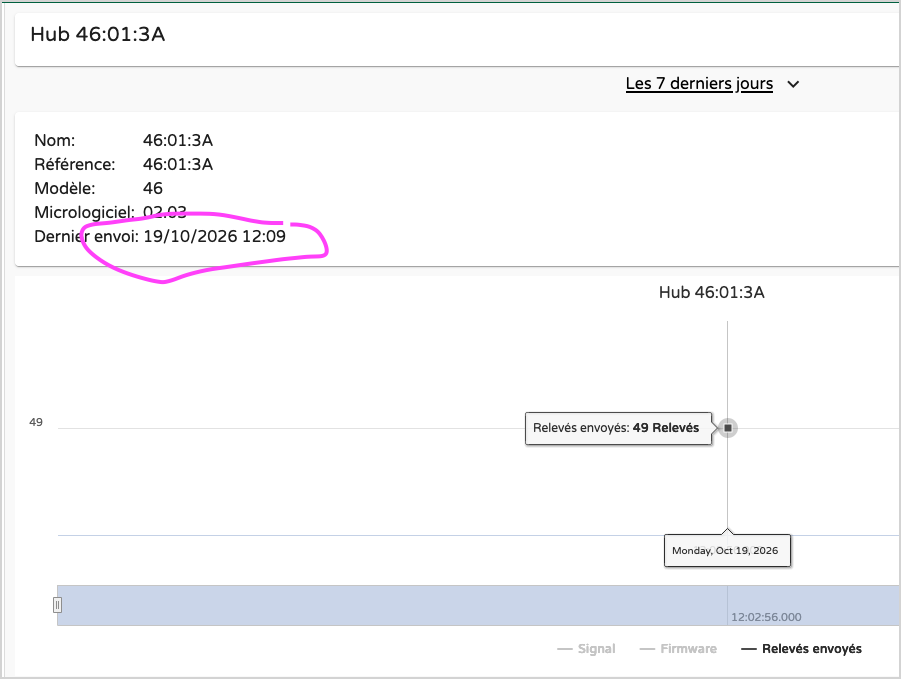
Step 8 — Check the Hub's Last Transmission
- Open MyBroodMinder.
- Navigate to your hub's page.
- Check the Last Sent date and time.
- Verify that the hub has recently uploaded data.
Data Transmission Confirmed
If the Last Sent timestamp has updated, your hub has successfully communicated with MyBroodMinder.
Your WiFi connection is working correctly.
Connected to WiFi but No Data?
A successful WiFi handshake does not necessarily mean that data has been uploaded.
If the Last Sent timestamp does not update, the hub may be connected to WiFi but unable to communicate with the BroodMinder servers.
Contact support and provide the communication trace for further investigation.
6. Troubleshooting Checklist
If your BRM-46 hub is no longer uploading data, use this checklist:
| Check | What to Verify |
|---|---|
| Power | Hub is powered directly through USB during testing |
| Bluetooth | Hub appears in the BroodMinder-Cell App |
| WiFi network | Correct network is selected |
| WiFi frequency | Network operates on 2.4 GHz |
| Password | WiFi password is correct |
| Signal strength | WiFi RSSI indicates adequate reception |
| Authentication | WPA Handshake Complete appears in the trace |
| MyBroodMinder | Last Sent timestamp has updated |
Need More Help?
If your hub still cannot connect, use the Copy button in the communication diagnostics screen to copy the trace.
Send it to support@broodminder.com, along with your hub ID and a description of the problem.